> ## Documentation Index
> Fetch the complete documentation index at: https://docs.odigos.io/llms.txt
> Use this file to discover all available pages before exploring further.
# New Relic
> Configuring the New Relic backend (Managed)
### Getting Started
 **Obtaining a License Key**
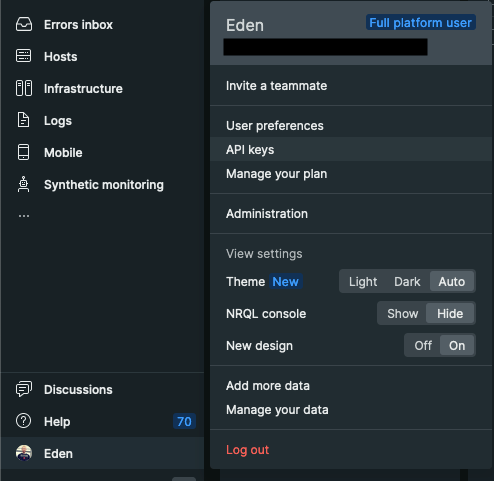
On the left sidebar, click on your account name and select **API Keys** and then click on **Create a key**.
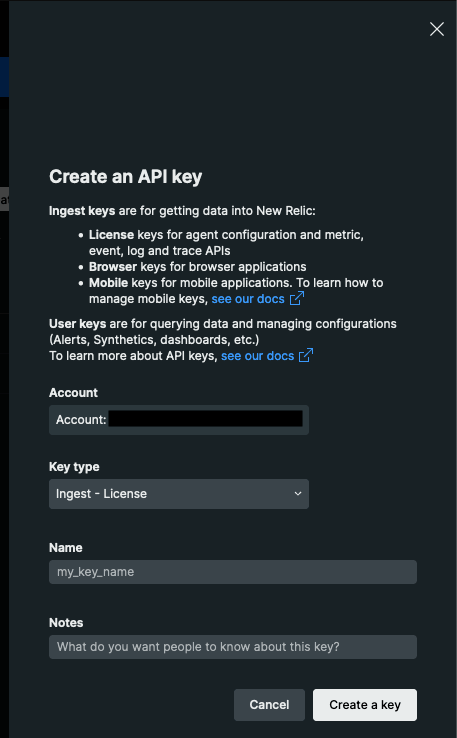
 For key type select **Ingest - License**, give a name to your key and press **Create a key**.
 ### Configuring Destination Fields
✅ Traces
✅ Metrics
✅ Logs
❌ Profiles
* **NEWRELIC\_API\_KEY** `string` : License Key.
* This field is required
* **NEWRELIC\_ENDPOINT** `string` : Endpoint.
* This field is required
### Adding Destination to Odigos
There are two primary methods for configuring destinations in Odigos:
##### **Using the UI**
Use the [Odigos CLI](https://docs.odigos.io/cli/odigos_ui) to access the UI
```bash theme={null}
odigos ui
```
Click on `Add Destination`, select `New Relic` and follow the on-screen instructions
##### **Using Kubernetes manifests**
Save the YAML below to a file (e.g. `newrelic.yaml`)
```yaml theme={null}
apiVersion: odigos.io/v1alpha1
kind: Destination
metadata:
name: newrelic-example
namespace: odigos-system
spec:
data:
NEWRELIC_ENDPOINT: ''
destinationName: newrelic
secretRef:
name: newrelic-secret
signals:
- TRACES
- METRICS
- LOGS
type: newrelic
---
apiVersion: v1
data:
NEWRELIC_API_KEY:
kind: Secret
metadata:
name: newrelic-secret
namespace: odigos-system
type: Opaque
```
Apply the YAML using `kubectl`
```bash theme={null}
kubectl apply -f newrelic.yaml
```
### Configuring Destination Fields
✅ Traces
✅ Metrics
✅ Logs
❌ Profiles
* **NEWRELIC\_API\_KEY** `string` : License Key.
* This field is required
* **NEWRELIC\_ENDPOINT** `string` : Endpoint.
* This field is required
### Adding Destination to Odigos
There are two primary methods for configuring destinations in Odigos:
##### **Using the UI**
Use the [Odigos CLI](https://docs.odigos.io/cli/odigos_ui) to access the UI
```bash theme={null}
odigos ui
```
Click on `Add Destination`, select `New Relic` and follow the on-screen instructions
##### **Using Kubernetes manifests**
Save the YAML below to a file (e.g. `newrelic.yaml`)
```yaml theme={null}
apiVersion: odigos.io/v1alpha1
kind: Destination
metadata:
name: newrelic-example
namespace: odigos-system
spec:
data:
NEWRELIC_ENDPOINT: ''
destinationName: newrelic
secretRef:
name: newrelic-secret
signals:
- TRACES
- METRICS
- LOGS
type: newrelic
---
apiVersion: v1
data:
NEWRELIC_API_KEY:
kind: Secret
metadata:
name: newrelic-secret
namespace: odigos-system
type: Opaque
```
Apply the YAML using `kubectl`
```bash theme={null}
kubectl apply -f newrelic.yaml
```