> ## Documentation Index
> Fetch the complete documentation index at: https://docs.odigos.io/llms.txt
> Use this file to discover all available pages before exploring further.
# Exporting Profiles to Destinations
> Send continuous profiling data from Odigos to third-party observability backends for long-term retention and analysis through Odigos Destinations
## Exporting Profiles to a Destination
The Odigos UI gives you fast, in-memory access to profiles for enabled Sources — ideal for live investigation when you don't need historical data but just want to inspect certain workloads on demand.
For **long-term retention**, **time-range analysis**, and **cross-service comparison**, you can route profile data to an external backend the same way you route traces, metrics or logs, by configuring a Destination in Odigos.
When a profile-capable Destination is configured, the gateway starts exporting OTLP Profiles to that backend alongside the Odigos UI.
## Supported Format
Profile data is emitted as **OTLP Profiles** — the OpenTelemetry profiles signal. Any backend that can ingest OTLP Profiles over HTTP can, in principle, receive data from Odigos.
OTLP Profiles is still **experimental** — the wire format and ingestion path (`/v1development/profiles`) may change. Keep your backend on a recent version that speaks a compatible protocol revision.
## Prerequisites
Before exporting profiles to a Destination:
1. Profiling is enabled cluster-wide (`profiling.enabled=true` Helm value). See [Getting Started](/enterprise/instrumentations/profiling/getting-started).
2. The workload you want to profile is registered as a [Source](/enterprise/pipeline/sources/introduction).
3. The Destination CRD is configured with the `PROFILES` signal.
4. Your chosen backend is reachable from the Odigos gateway and accepts OTLP Profiles.
The Destination can be created through the Odigos UI, CLI, or Kubernetes CRD. Profile export starts once profiling is enabled and the Destination includes the `PROFILES` signal.
## Try out configuring a profiling Destinations
Self-hosted Grafana Pyroscope. Receives OTLP profiles over HTTP at `/v1development/profiles`.
## Example: Pyroscope
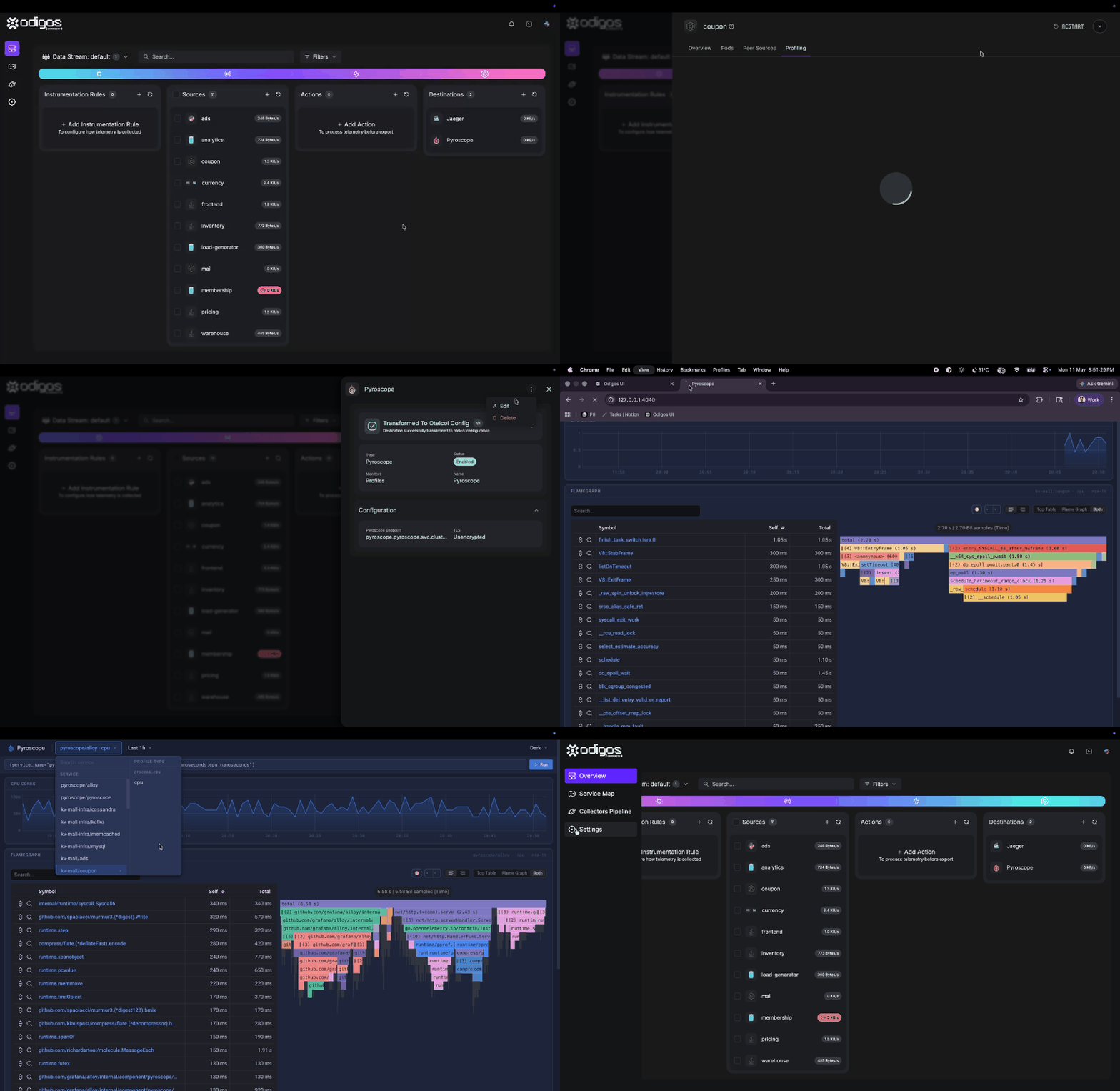 Follow [Getting started](/enterprise/instrumentations/profiling/getting-started) and set `profiling.enabled=true` so profiling is active on the cluster.
In **Destinations**, add **Pyroscope** and enable the **Profiles** signal so the gateway forwards OTLP Profiles to Pyroscope as well as to the UI.
Follow [Getting started](/enterprise/instrumentations/profiling/getting-started) and set `profiling.enabled=true` so profiling is active on the cluster.
In **Destinations**, add **Pyroscope** and enable the **Profiles** signal so the gateway forwards OTLP Profiles to Pyroscope as well as to the UI.
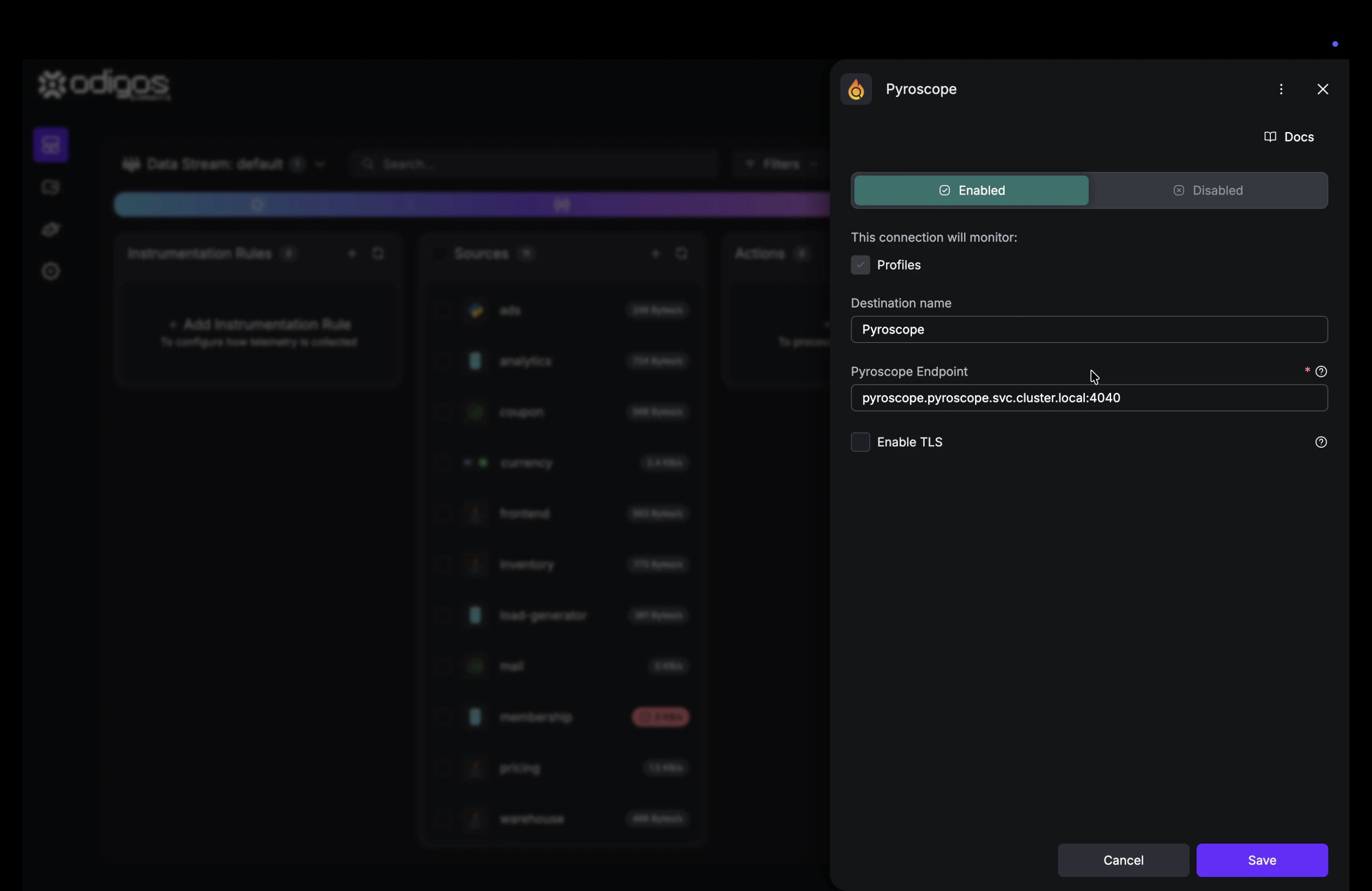 Set **Pyroscope URL** to the distributor HTTP API as `host:port` (for example `pyroscope.pyroscope:4040`). Do **not** add an `/otlp` prefix—Odigos sends OTLP Profiles to the path Pyroscope expects on that host.
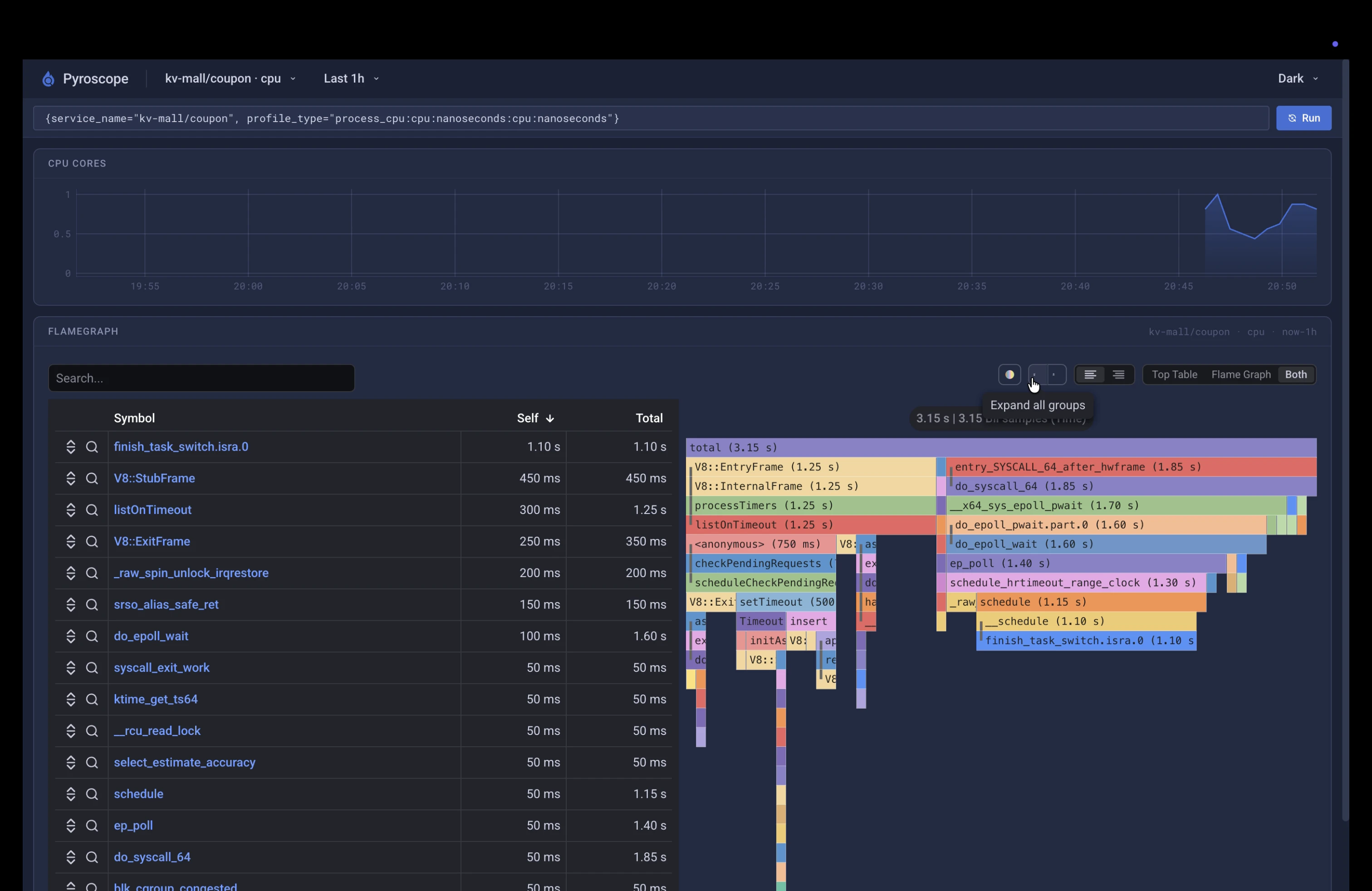
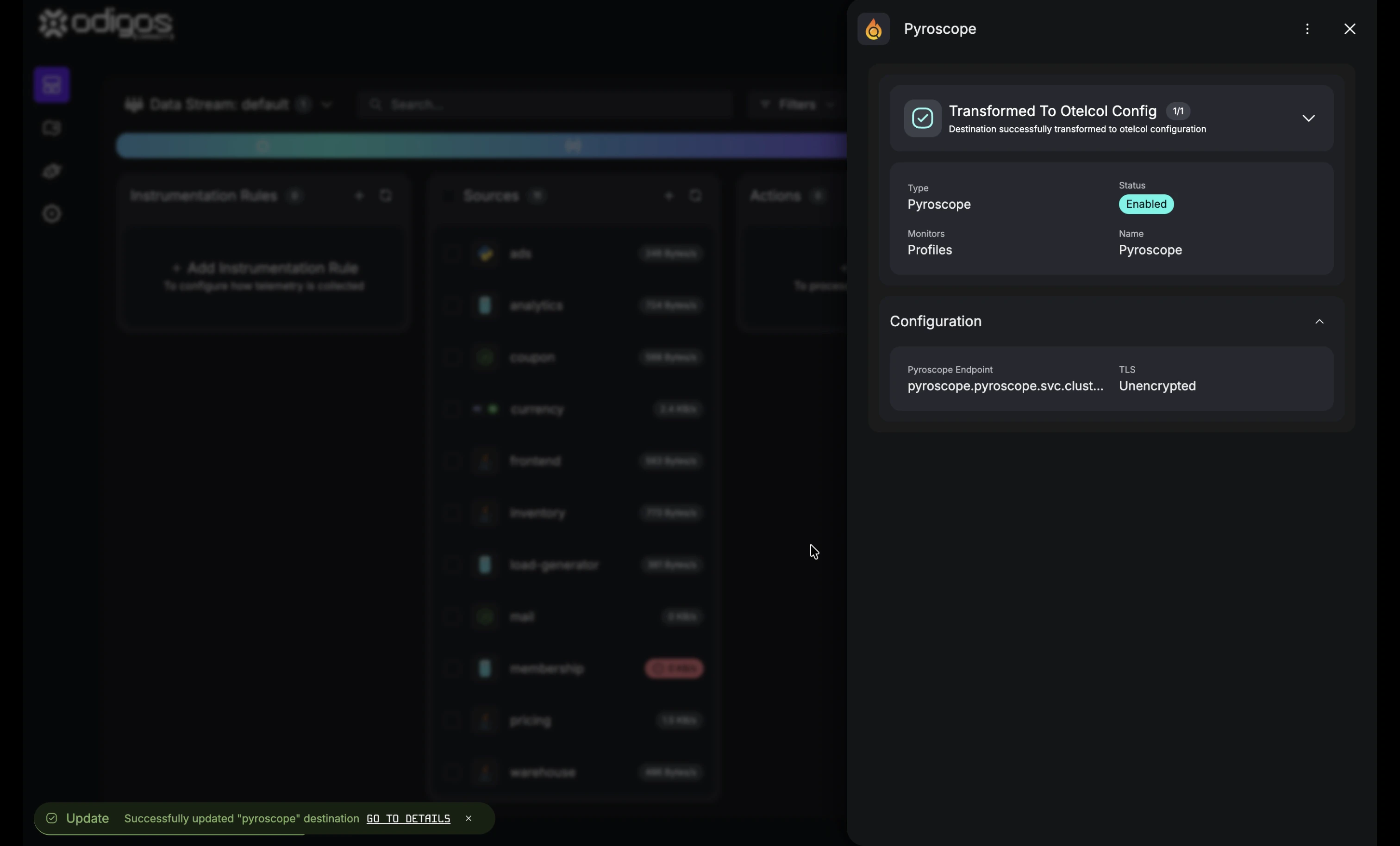 After the gateway picks up the destination, open Pyroscope and confirm profile data for your services. Export does not depend on having a profiling slot open in the Odigos UI.
 ## Topology
The export path mirrors the rest of the Odigos pipeline:
```
eBPF profiler running as collector receiver (per node)
│ OTLP Profiles
▼
Data Collector (per node)
│ OTLP Profiles
▼
Gateway profiles pipeline
├──► Odigos UI buffer (on demand, in-memory flame graph)
└──► Configured Destination (Pyroscope, or any OTLP backend supporting backend)
```
## Getting Help
If you have any issues, or require our assistance, please open an issue in [GitHub](https://github.com/odigos-io/odigos), or reach out to us in [Odigos Slack](https://join.slack.com/t/odigos/shared_invite/zt-24u91yknm-0fLXu6qnqYfNHS_GSUgTJw)
## Topology
The export path mirrors the rest of the Odigos pipeline:
```
eBPF profiler running as collector receiver (per node)
│ OTLP Profiles
▼
Data Collector (per node)
│ OTLP Profiles
▼
Gateway profiles pipeline
├──► Odigos UI buffer (on demand, in-memory flame graph)
└──► Configured Destination (Pyroscope, or any OTLP backend supporting backend)
```
## Getting Help
If you have any issues, or require our assistance, please open an issue in [GitHub](https://github.com/odigos-io/odigos), or reach out to us in [Odigos Slack](https://join.slack.com/t/odigos/shared_invite/zt-24u91yknm-0fLXu6qnqYfNHS_GSUgTJw)