> ## Documentation Index
> Fetch the complete documentation index at: https://docs.odigos.io/llms.txt
> Use this file to discover all available pages before exploring further.
# Instrument from Profiles
> Create custom instrumentation rules from a function in the odictl continuous profiling view.
The odictl [profiling view](/vmagent/instrumentations/profiling/view-in-odictl) lets you turn a profiled function into a [custom instrumentation](/vmagent/setup/configuration/instrumentation-rules/custom-instrumentation) rule with a single keystroke. Instead of typing a class, package, or method name by hand, you highlight a hot function in the profile and press `i`—`odictl` generates the matching `CustomInstrumentation` rule for you.
This UI-driven flow supports **Java**, **Go**, and **C++**.
This page covers the profile-driven, UI-only workflow. To define a rule manually (entering class/method or package/function yourself) or with YAML files, see [Custom Instrumentation](/vmagent/setup/configuration/instrumentation-rules/custom-instrumentation).
## Before you start
* Profiling must be enabled and collecting data. See [View profiles in odictl](/vmagent/instrumentations/profiling/view-in-odictl).
* A [source](/vmagent/setup/configuration/add-sources) must be enabled for the service you want to instrument.
## Create a rule from a profile
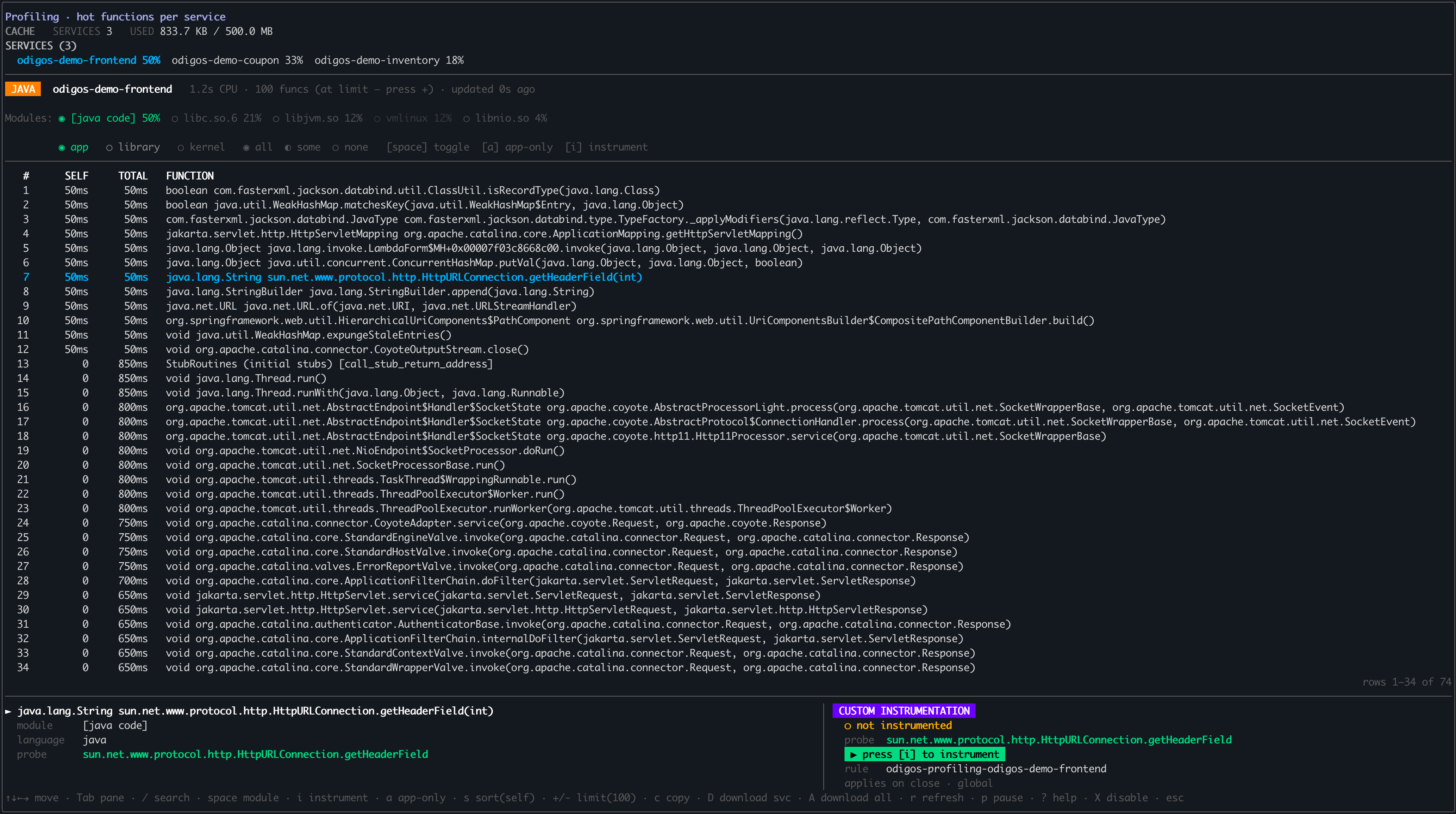
From the main `odictl` dashboard, press Shift+P to open the [profiling view](/vmagent/instrumentations/profiling/view-in-odictl). Use `Tab` to move between the three panes—**Services**, **Filter modules**, and **Functions**—and the arrow keys to move within the focused pane.
1. In the **Services** pane, select a service. Its runtime (Java, Go, or C++) determines the modules shown.
2. In the **Filter modules** pane, adjust the module or type filter if needed.
3. In the **Functions** pane, highlight the function you want to instrument.
In this example, the `odigos-demo-frontend` service is selected and the highlighted function is the Java method `sun.net.www.protocol.http.HttpURLConnection.getHeaderField`.
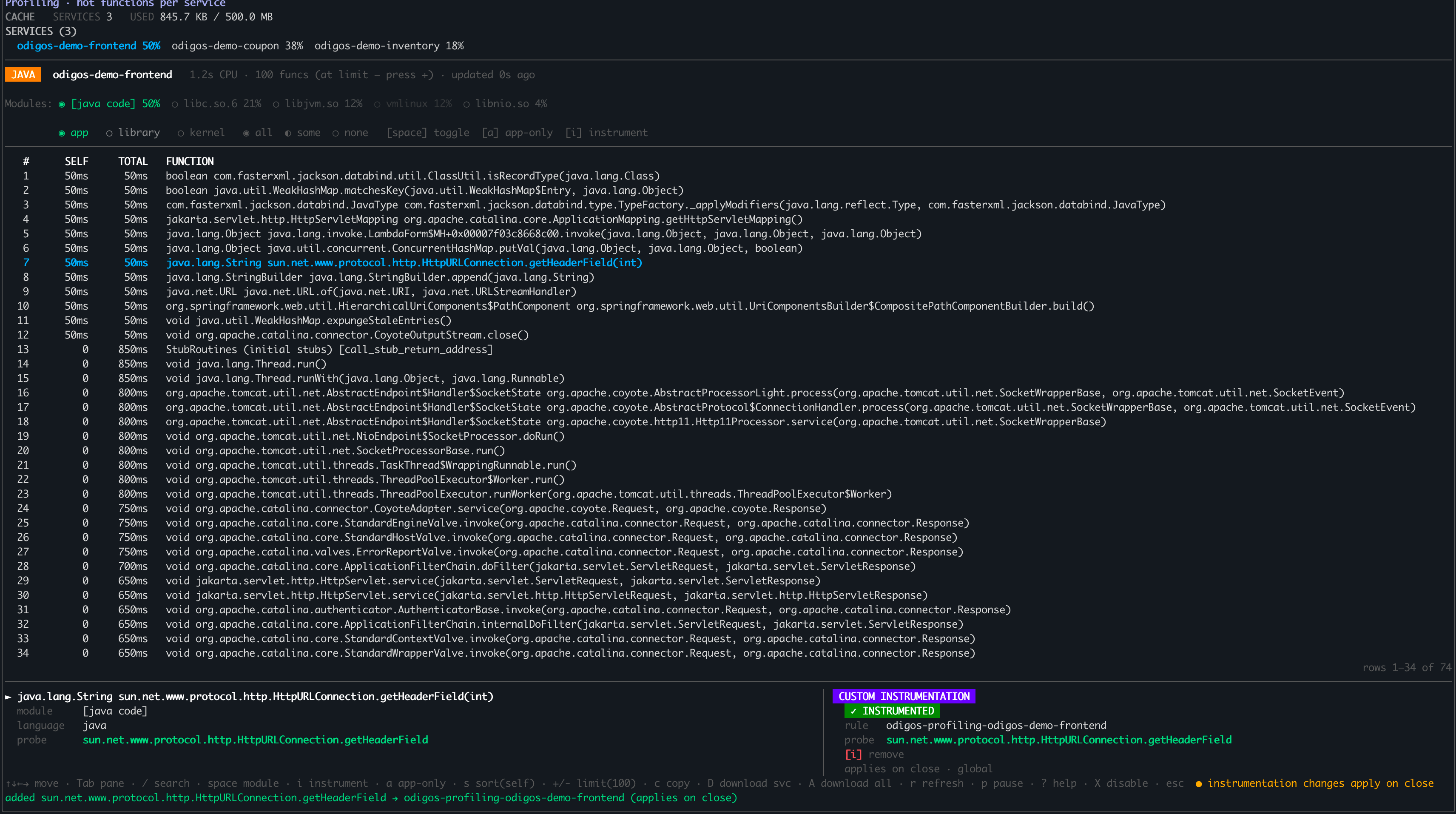
 Press i. The bottom-right panel updates to show the function is **Instrumented**. In this example, `getHeaderField` is now instrumented under the `odigos-profiling-odigos-demo-frontend` rule.
 Press Esc to return to the main dashboard. A new rule appears in the **Rules** section, named `odigos-profiling-` for the service you selected—`odigos-profiling-odigos-demo-frontend` in this example.
Highlight the rule to view its configuration. The generated config matches the runtime of the profiled function:
* **Java** — the fully qualified class name and method name.
* **Go** — the package and function name, or the package, receiver type, and method name.
* **C++** — the function signature.
For the underlying field reference, see [Custom Instrumentation](/vmagent/setup/configuration/instrumentation-rules/custom-instrumentation).
Press Esc to return to the main dashboard. A new rule appears in the **Rules** section, named `odigos-profiling-` for the service you selected—`odigos-profiling-odigos-demo-frontend` in this example.
Highlight the rule to view its configuration. The generated config matches the runtime of the profiled function:
* **Java** — the fully qualified class name and method name.
* **Go** — the package and function name, or the package, receiver type, and method name.
* **C++** — the function signature.
For the underlying field reference, see [Custom Instrumentation](/vmagent/setup/configuration/instrumentation-rules/custom-instrumentation).
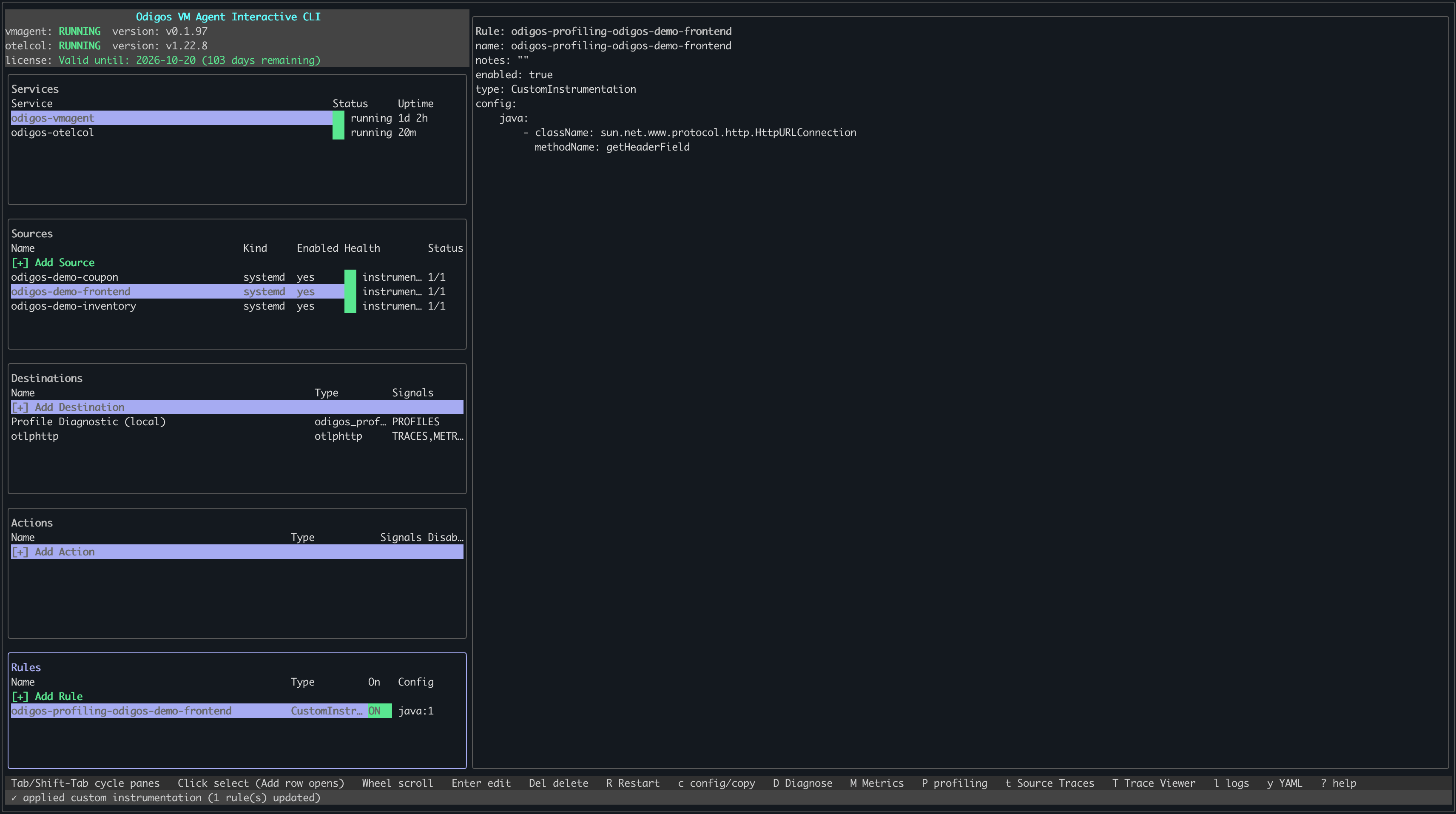 The rule name and config are generated automatically from the profile—you don't enter the class, package, or method by hand. To author a rule manually instead, see [Custom Instrumentation](/vmagent/setup/configuration/instrumentation-rules/custom-instrumentation).
Once the rule is applied, new traces include a span for the instrumented function. Open your trace backend and search for the function name (for example, `getHeaderField`) to confirm the span is being recorded.
## Remove a profile-driven instrumentation
To stop instrumenting a function, reopen the profiling view (`Shift+P`), highlight the same function, and press i again. The panel shows **\[i] remove** for an already-instrumented function.
## Related
* [View profiles in odictl](/vmagent/instrumentations/profiling/view-in-odictl) — open and navigate the profiling view.
* [Custom Instrumentation](/vmagent/setup/configuration/instrumentation-rules/custom-instrumentation) — define rules manually with `odictl` or YAML.
* [Instrumentation rules overview](/vmagent/setup/configuration/instrumentation-rules/overview) — all rule types and their benefits.
The rule name and config are generated automatically from the profile—you don't enter the class, package, or method by hand. To author a rule manually instead, see [Custom Instrumentation](/vmagent/setup/configuration/instrumentation-rules/custom-instrumentation).
Once the rule is applied, new traces include a span for the instrumented function. Open your trace backend and search for the function name (for example, `getHeaderField`) to confirm the span is being recorded.
## Remove a profile-driven instrumentation
To stop instrumenting a function, reopen the profiling view (`Shift+P`), highlight the same function, and press i again. The panel shows **\[i] remove** for an already-instrumented function.
## Related
* [View profiles in odictl](/vmagent/instrumentations/profiling/view-in-odictl) — open and navigate the profiling view.
* [Custom Instrumentation](/vmagent/setup/configuration/instrumentation-rules/custom-instrumentation) — define rules manually with `odictl` or YAML.
* [Instrumentation rules overview](/vmagent/setup/configuration/instrumentation-rules/overview) — all rule types and their benefits.