

odigos-admins group can be granted the Admin role on sign-in, with no per-user configuration.
Roles are evaluated on every login, so changes to a user’s group membership (or to the mappings themselves) take effect the next time they sign in.
Role mappings require Azure AD configured as an OIDC SSO provider. See
Authentication to set that up first.
Roles
When a user belongs to multiple mapped groups, the highest role wins. Precedence is: Owner > Admin > Maintainer > Viewer.
Configuring Azure AD group claims
For role mappings to work, Azure must include the user’s groups in the token it sends to Odigos.1
Emit the groups claim
In the Azure portal, open your App Registration → Token configuration → Add groups claim. Choose the groups to emit (e.g. Security groups) for both the ID and Access tokens.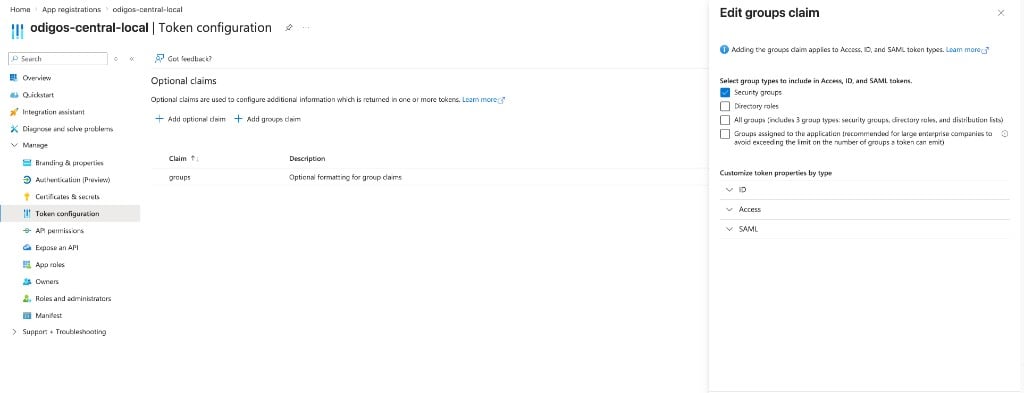
2
Note the group identifier
The value you map must exactly match what Azure puts in the
groups claim. By default Azure emits the group Object ID (a GUID) — copy it from Azure AD → Groups. If you’ve configured the groups claim to emit names instead (e.g. Cloud-only group display names, or sAMAccountName for on-prem-synced groups), use the group name instead. Either way, paste that exact value into the Group field.Azure uses
groups as the claim name by default, which matches the Odigos
default. If you’ve customized the claim name, set it in the Claim Name
field when creating a mapping.Creating a role mapping
1
Open Access Management
In the Central UI, go to Access Management and select the Role Mappings tab.
2
Add a mapping
Click Create Role Mapping and fill in: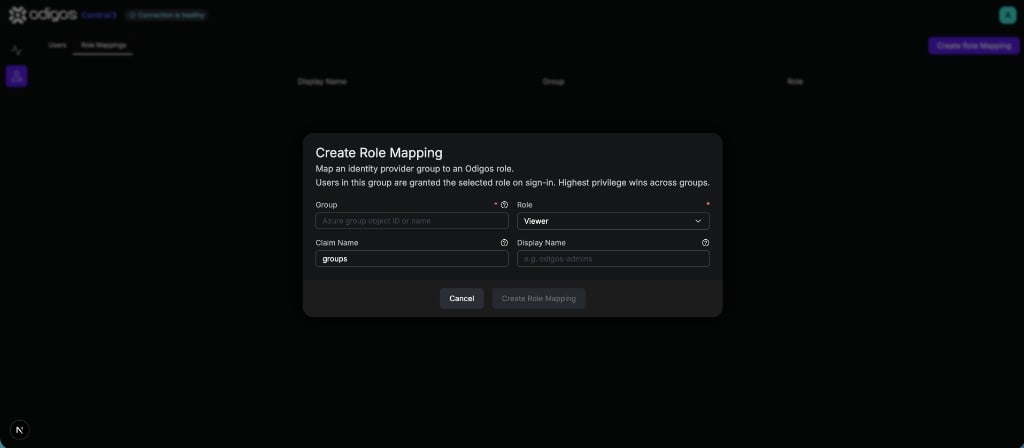
- Group — the value from the previous step: the group Object ID (GUID) by default, or the group name if Azure emits names. It must exactly match what Azure puts in the claim.
- Role — the Odigos role to grant: Admin, Maintainer, or Viewer.
- Claim Name — the token claim that carries group membership. Defaults to
groups. - Display Name (optional) — a friendly label shown in the table instead of the raw group value. This does not affect matching.
3
Save and sign in
Save the mapping. Affected users receive their role the next time they sign in.
Only Admins can create, edit, or delete role mappings. Viewers can see the
mappings in read-only mode.