

Enable Cloud Connectors
before you add a connector.
Resource types
Add the connector
1
Open Add connector and choose GCP
In the Central UI, open Connections / Connectors and start Add connector. Choose GCP.
2
Choose access level
Choose how much access this connector should have. The UI shows an example IAM policy for the level you pick. You will grant that role to the connector identity in the next step.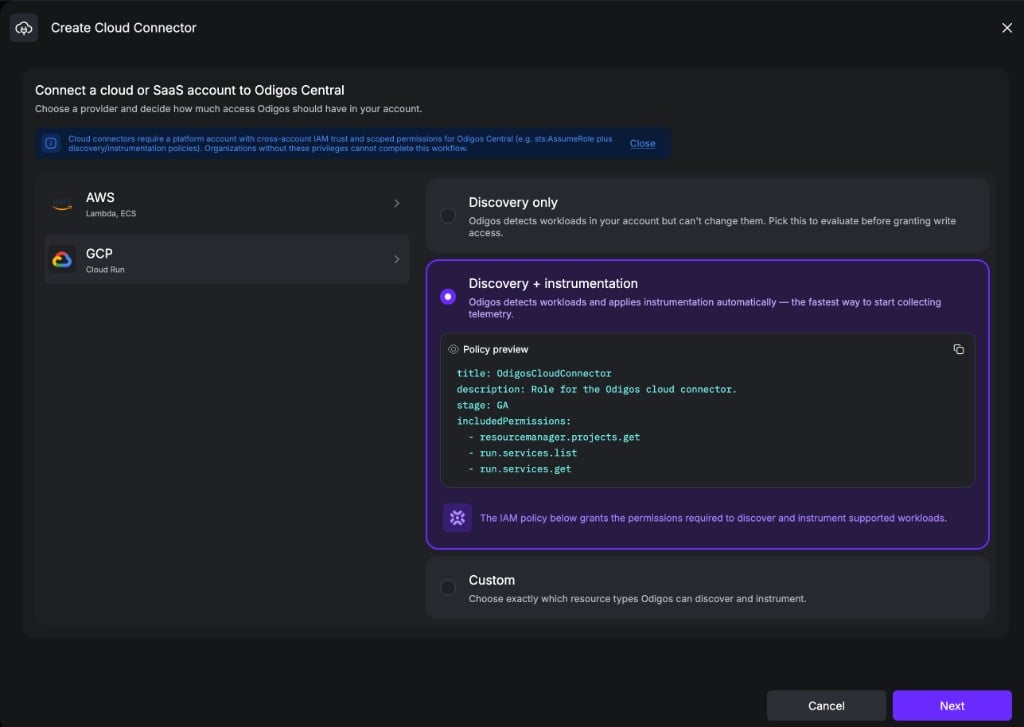
- Discovery only
- Discovery + instrumentation
- Custom
The connector can discover resources and instrument supported workloads. Prefer this for a full setup in one step.Includes all discovery permissions, plus Cloud Run instrumentation:
Cloud Run instrumentation also requires an OTLP destination after the connector is online. That endpoint must be reachable from Cloud Run, because instrumented services export OTLP directly to it.
Use the policy preview as the source of truth for the custom role. This
keeps connector access scoped — not blanket project owner. See
You control the access scope.
3
Setup credentials
On the Setup credentials screen, identify the project and enter the identity Odigos uses to access it.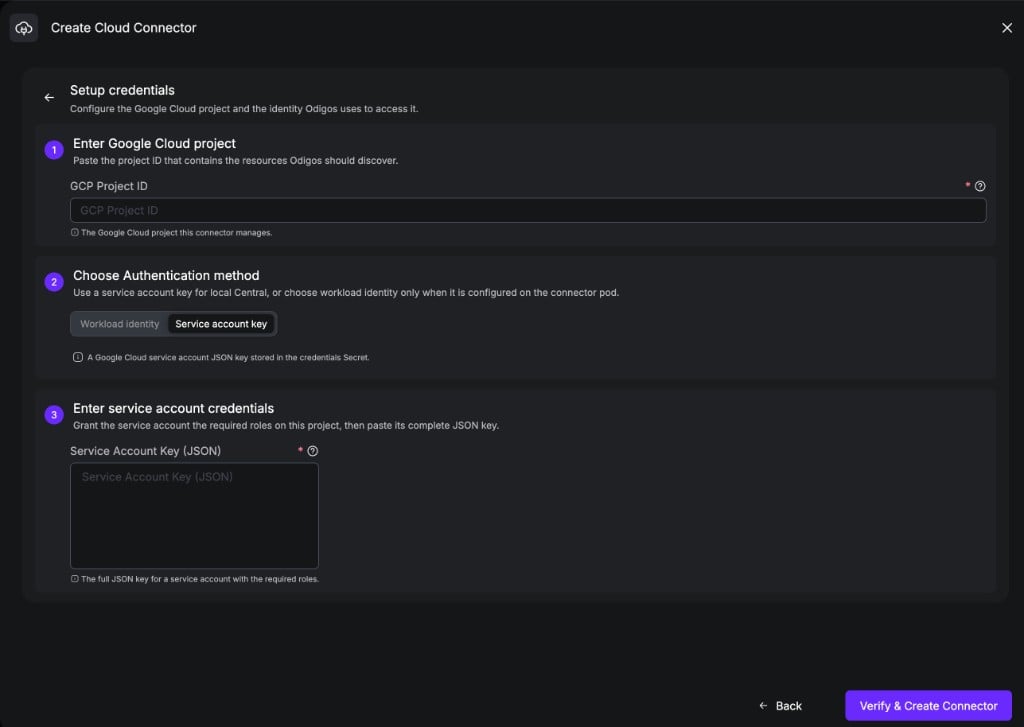
1. Enter Google Cloud project
string
required
The Google Cloud project that contains the resources Odigos should discover.
2. Choose authentication method
Use a service account key for local Central, or choose workload identity only when it is configured on the connector pod.- Workload identity
- Service account key
Use a JSON key for a dedicated service account. Prefer this for local Central (for example kind) or any cluster without Workload Identity / ADC.The key is stored in a Kubernetes Secret in the Central cluster — never in the connector spec.
- Create a Google Cloud service account in the target project.
- Grant it the IAM role from the access level step.
- Create a JSON key for that service account.
- Select Service account key in Odigos and paste the complete JSON key.
string
required
The full JSON key for a service account with the required roles.
4
Verify and create
Click Verify & Create Connector. Central runs connection checks, then creates the
OdigosCloudConnector resource when verification succeeds. For Service account key, it also writes the credentials Secret; for Workload identity, no Secret is created.Verification covers authentication and discovery permissions for the access
level you selected. For Discovery + instrumentation, also ensure the
instrumentation permissions from the policy preview (including
iam.serviceAccounts.actAs) are granted before you create Sources.5
Wait for Connected
After create succeeds, wait until the connector status is Connected and initial discovery has completed.
When the connector shows Connected, you can browse discovered workloads and
start instrumenting.
Next steps
Instrument workloads
Add an OTLP destination, create Sources for discovered Cloud Run services, and track instrumentation.