Introduction
The Odigos VM Agent is installed with a terminal user interface (TUI) calledodictl. odictl is one method you can use
to instrument processes and services, set up destinations, and add actions to Odigos.
Want centralized visibility and management? See Connecting VM Agent to connect this host to Odigos Central.
odictl, run the following command from the command-line:
Install a license
Apply the Odigos Pro token the support team issued.odictl validates the JWT before writing /var/lib/odigos-agent/config/license.jwt, then you restart the agent:
Alternative:
Create a file called /var/lib/odigos-agent/config/license.jwt with the JWT token and restart the agent.
Navigation
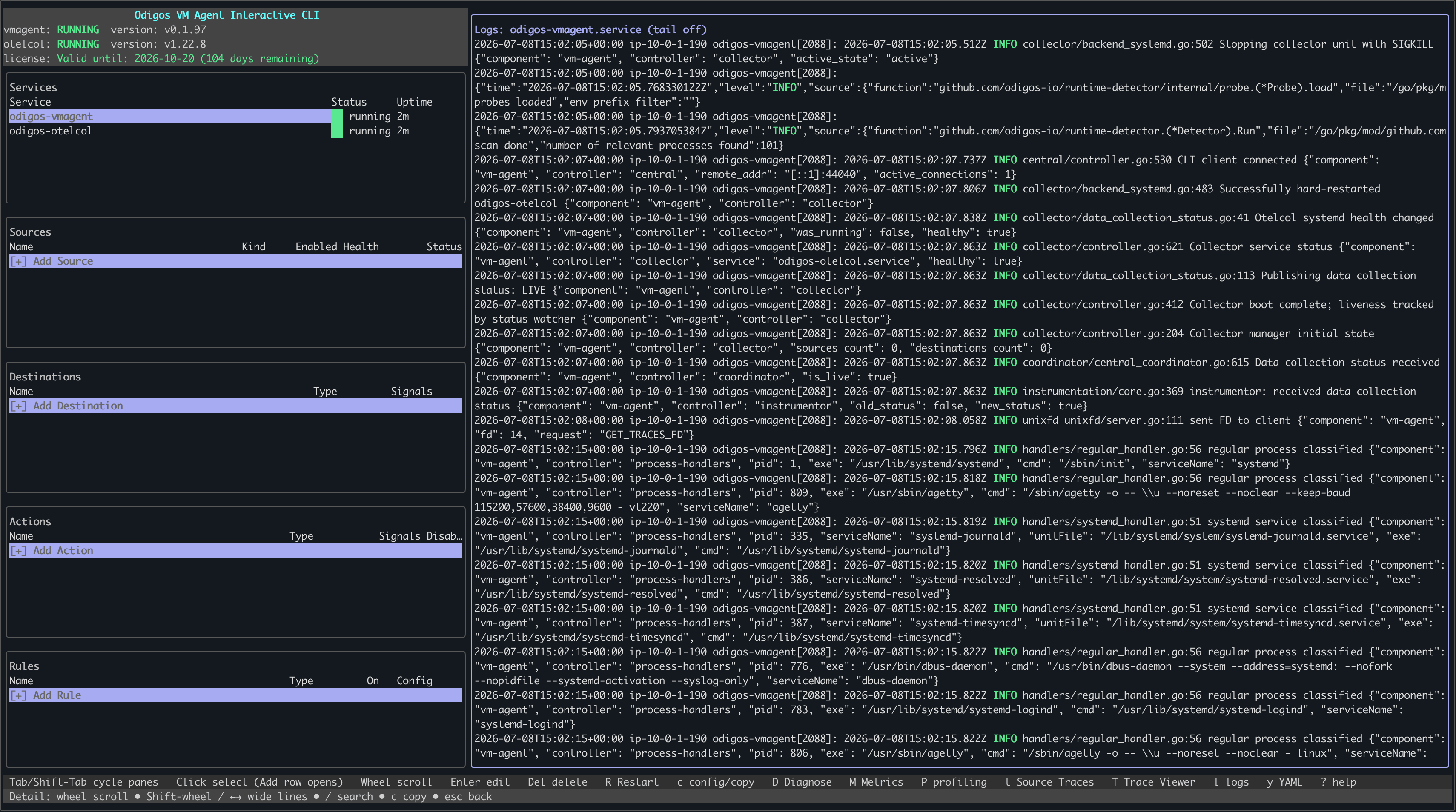
The odictl interface has five main sections: Services, Logs, Sources, Destinations, and Actions. Use the keyboard to move between them; if you are connected through anssh session from a terminal that supports
mouse input, you can navigate the interface with your mouse.
Navigating the Interface
Services Panel
The Services section shows the status of the two services that run the Odigos VM Agent: odigos-vmagent and odigos-otelcol. When you highlight a service, the log window shows that service’s logs.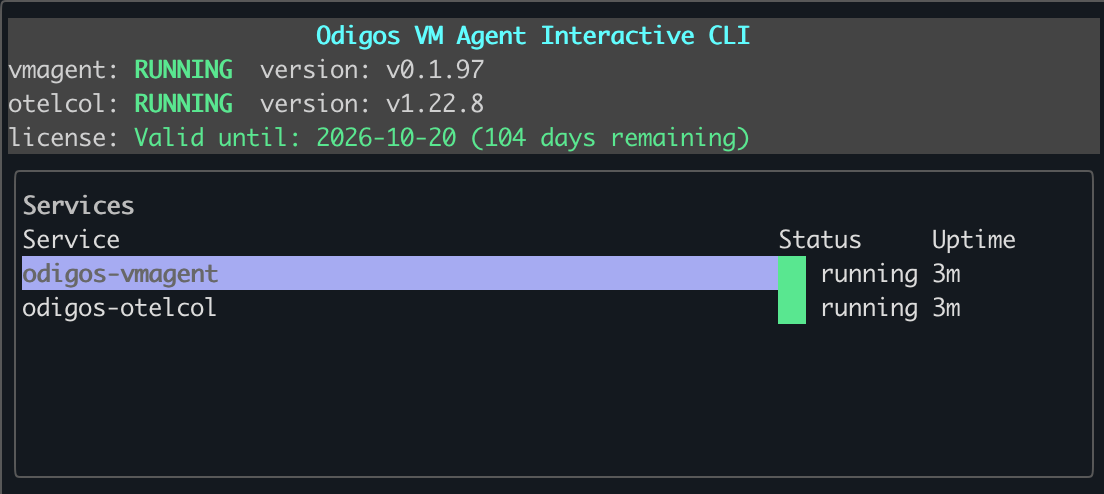
Logs Panel
The Logs section shows a live stream of logs for the odigos-vmagent and odigos-otelcol Odigos services. When the section is focused, use the ↑ / ↓ keys or the mouse wheel to scroll through the logs.Sources Panel
Sources is where you define the systemd services or Linux processes on the host system that you want to instrument with the Odigos VM Agent. See Add Sources to learn how.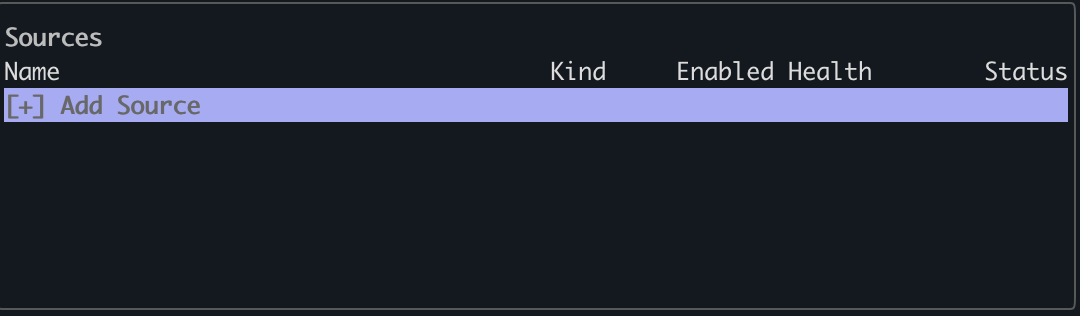
Destinations Panel
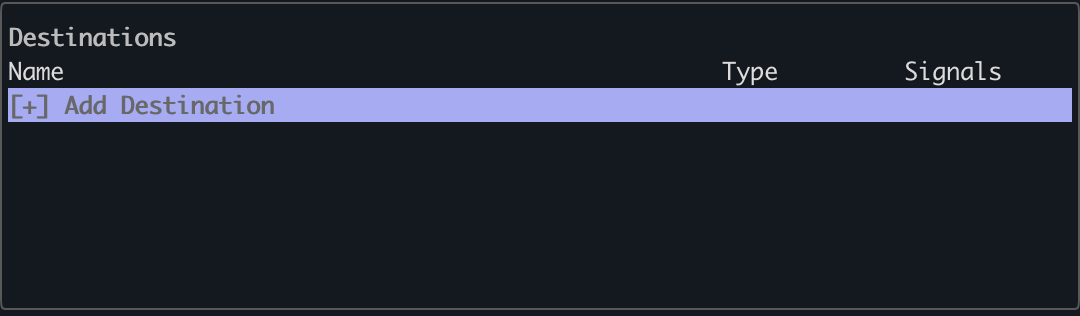
Destinations are backends that accept data from the Odigos VM Agent. Odigos lets you add as many destinations as you like, enabling you to execute different use cases such as:- Using different backends for different types of OpenTelemetry signals
- Migrating from one backend to another
- Testing different backends for different OpenTelemetry use cases
Actions Panel
Actions let you modify OpenTelemetry data from Odigos Sources before it is exported to your destinations. Odigos implements actions using OpenTelemetry Collector processors—components that transform, filter, or enrich telemetry before it is sent to your destinations. See Actions overview to add or edit actions. For action types and processor options, see Odigos Actions.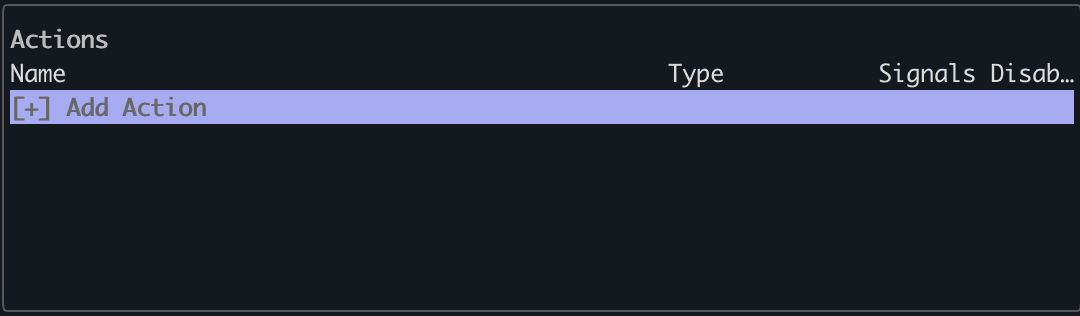
Configuration Editor
The Configuration Editor lets you view and modify the VM Agent’s configuration directly from the TUI without manually editing YAML files.Opening the Configuration Editor
Press c from any panel to open the Configuration Editor. The editor replaces the main dashboard with a three-column layout:Navigating the Editor
Mouse navigation is also supported: click a section, subsection, or field to focus it, and use the
scroll wheel to browse long lists of fields.
Editing Fields
- Text fields: Type directly into the input to change the value.
- Boolean / enum fields: A dropdown appears with the available options. Use
↑/↓to pick a value, then pressEnterto confirm. - Read-only fields: Displayed with a (read-only) label and cannot be modified.
Saving Changes
Press Ctrl+S to validate and save. If validation fails (for example, a value is out of range), an error message appears at the top of the Values column. Fix the indicated field and save again. Saving writes the updated configuration to the YAML file on disk and triggers an automatic reload of the affected agent components.Configuration Sections
Logging
Logging
Controls how the VM Agent writes logs to stdout and to a rotated log file on disk.
Log rotation subsection — settings for the on-disk rotated log file:
Network
Network
Port assignments for the VM Agent process and the OpenTelemetry Collector. Changing collector receiver
ports restarts the collector and re-instruments affected workloads.Vmagent subsection:
Collector subsection:
Collector receivers subsection:
Central
Central
Settings for connecting this VM Agent to an Odigos Central management plane. When Enabled is
false, the remaining fields are ignored and the agent runs standalone.Process controller
Process controller
Controls how the agent discovers and monitors processes on the host.
Data collection
Data collection
Configuration passed to the OpenTelemetry Collector instance managed by the VM Agent.Otel collector subsection:
Instrumentation controller
Instrumentation controller
Controls how the agent instruments discovered processes. The Java instrumentation
subsection targets Java-specific behavior.Java instrumentation subsection:
Profiling
Profiling
Enables continuous CPU profiling (eBPF, OTLP Profiles) on odigos-otelcol. This is separate from Go pprof (see Pprof below). See Continuous Profiling for the full setup.Toggling this field reloads the collector and the PID →
service.name registry within seconds — no vm-agent restart is required.Pprof
Pprof
Controls the Go
net/http/pprof debug endpoint for the vm-agent process only. This is for debugging the agent itself and has nothing to do with application continuous CPU profiling (see Profiling above for that).Instrumentation Rules Panel
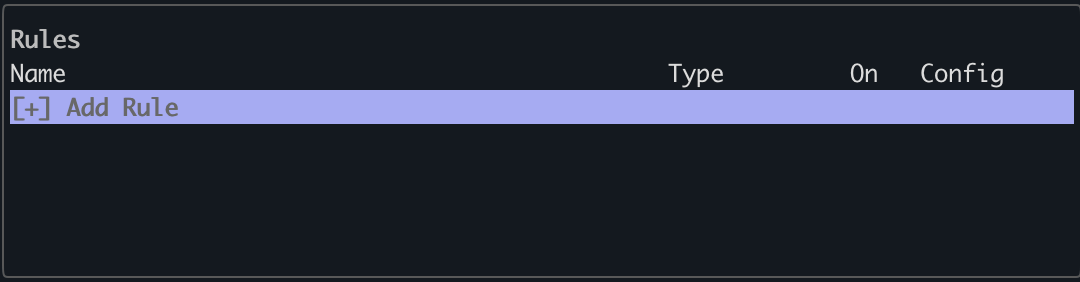
Instrumentation Rules control how telemetry is recorded from your instrumented sources. A rule can be applied to specific sources and instrumentation libraries, letting you control what attributes, headers, or payloads are collected and how custom instrumentations behave. For rule types and configuration options, see Instrumentation rules overview.