

Step 1: Enable the profiling pipeline
Turn on the eBPF profiles pipeline on odigos-otelcol. You can useodictl or edit /var/lib/odigos-agent/config/config.yaml directly.
- odictl
- YAML
1
Open the Configuration Editor
2
Set profiling.enabled to true
Set profiling.enabled to
true and press Ctrl+S to save. The collector reloads automatically.Step 2: Enable sources for the workloads you want to profile
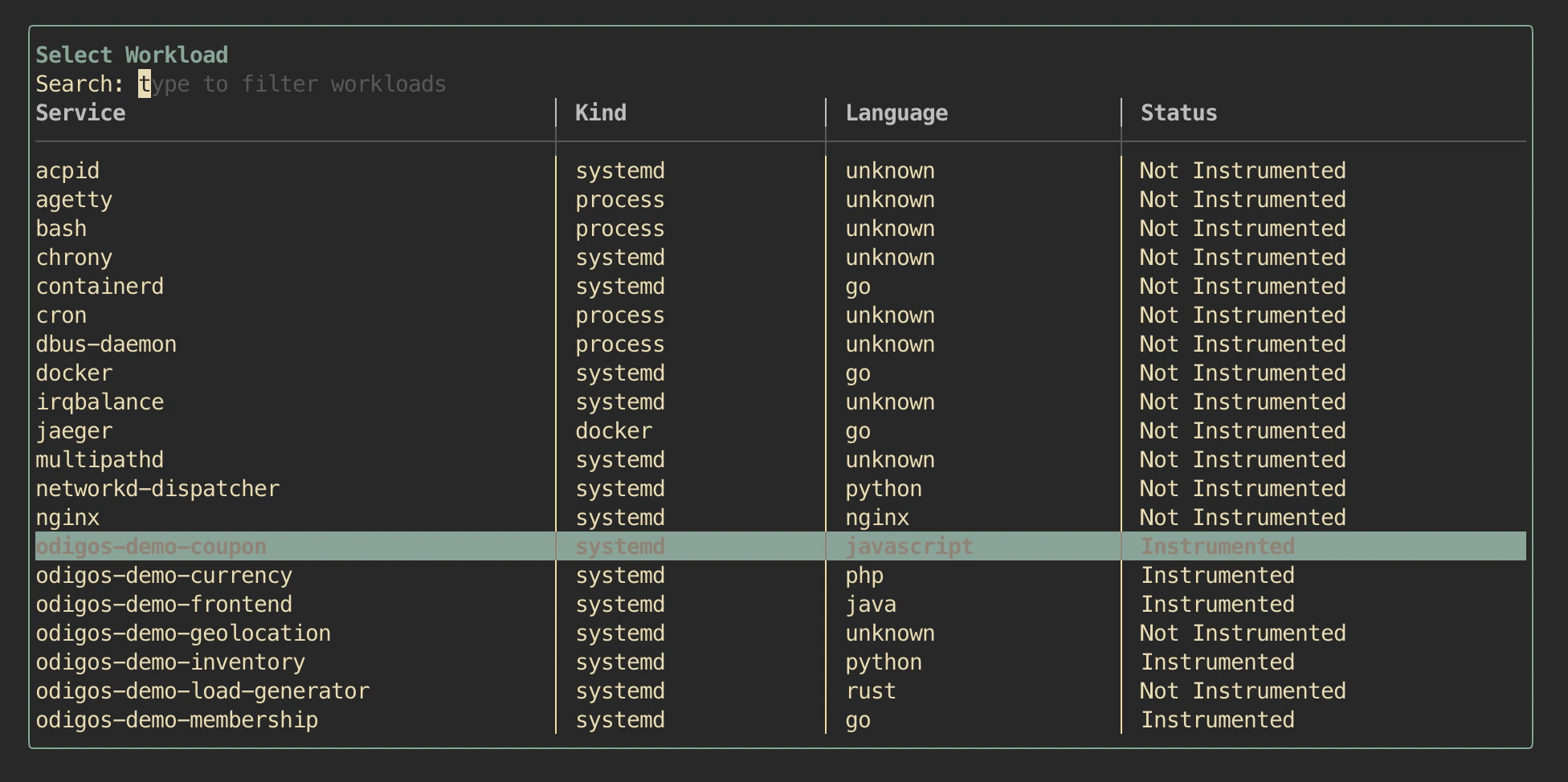
Profiling only retains samples for enabled sources. Openodictl, focus the Sources pane (press o), and instrument the services you want sampled. The screenshot below shows the demo workloads enabled (Instrumented) alongside other host processes that stay untouched (Not Instrumented).
Step 3: Add a destination that accepts PROFILES
Open Destinations → + Add Destination and search for profiles. Any destination whose Signals column includesPROFILES or they accept OTLP Profiles signal works.
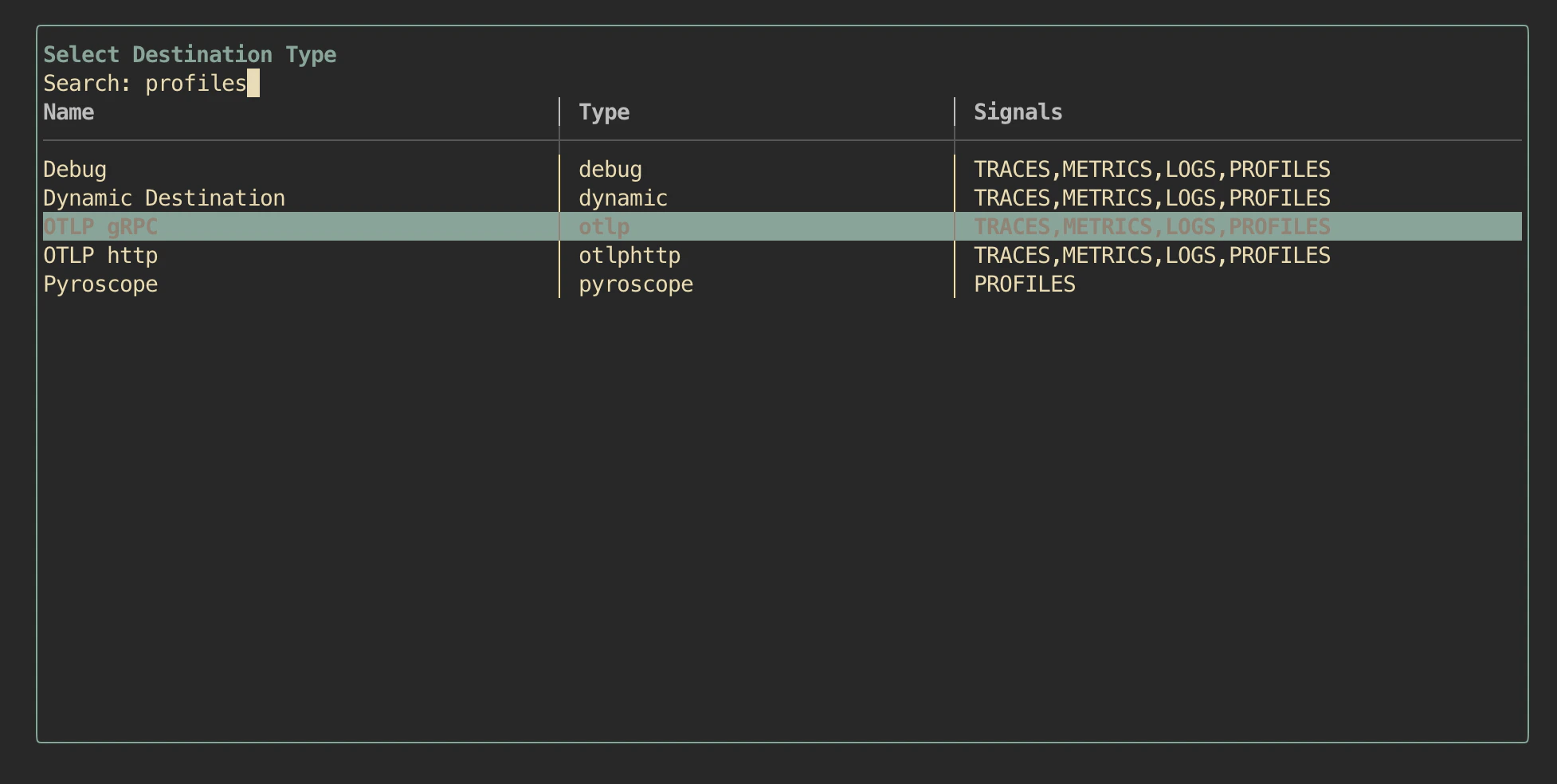
otlp or otlphttp), follow the standard Add destinations.
Step 4: View profiles in the destination
Open your destination’s UI and you should be able to access the application profiles collected. eg in Pyroscope, select profile typeprocess_cpu and filter by service.name values that match your sources. See Export to Pyroscope → View profiles for detailed example.